Board tools: load, test, and fix
For whoever prepares the Picos, a teacher or mentor at a computer. Two small tools turn a pile of boards into ready-to-hand-out stations: one tests a board and one loads and fixes it. This is the bench workflow; it does not change the kid-facing Viper flow at all.
What you need
A computer with the project cloned, a USB cable, and mpremote (the command-line tool that talks to a Pico). You run these from the repo folder.
1 · Flash MicroPython onto a blank board
A brand-new Pico is empty and needs MicroPython once. Two ways:
By hand (the classic)
Hold BOOTSEL while plugging in USB; the Pico appears as a drive named RP2350. Drag the firmware file onto it. The drive vanishes, that means it worked.
Let hwfix do it (best for loading many)
With the board in BOOTSEL, run tools/hwfix.sh. It notices the board has no firmware, mounts the drive, offers to flash it, then waits for it to reboot and installs the code, all in one command. Add -y to skip the prompt when you are loading a stack of them.
2 · hwfix — load and repair a board
tools/hwfix.sh is the do-everything loader. Every run, in order:
- Backs up first, twice. Copies the whole board to a dated folder in two places: an immutable copy in ~/wormhole-backups/ that no repo operation can touch, and a working copy in the repo's backups/ (gitignored). It de-duplicates: an identical board makes no new copy. (A freshly flashed, empty board has nothing to back up, so this step is skipped.)
- Repairs. Deletes stale compiled .mpy files and editor scraps, then installs any missing or changed program files from the repo.
- Leaves your data alone. name.txt, wifi.json, cal.json, placements.json are backed up but never overwritten.
- Verifies. Runs the self-test and prints the result, plus the exact command to undo this run from the backup.
By default it installs the full image, every project plus drivers, so a board works with whatever sensors are plugged in, no computer needed after. Flags:
| Flag | What it does |
|---|---|
| (none) | backup, install the full everything image, verify |
| --core | install just the worm-bin capstone, not every demo |
| --dry-run | show what it would do, change nothing |
| -y | auto-confirm a firmware flash (batch loading) |
| --no-restore | clean up junk but do not (re)install program files |
| --restore-backup DIR | the undo: push a saved backup back onto the board exactly as it was |
3 · hwtest — the board self-test
Run it anytime to check a board. It ships itself to the Pico, so nothing needs to be installed first:
It prints a report you read at a glance:
✓ ok a check passed ✗ fail present but broken, fix it · skip that part is not plugged in (fine) ! warn worth a look i info a reading, no pass/fail
A missing part is a skip, never a failure, so the same test is honest whether a board has every sensor or none. The checks are grouped: can it run at all, did the code land cleanly, the truth-light LED, the network port, the I2C bus, each sensor that is present, the display, and the direct-wired parts. It ends with a verdict and, if anything failed, the command to repair it.
Plug the sensors into any I2C pair
The sensor bank does not have to be on one fixed pair of pins. On start-up the software scans a set of clean pin pairs and uses whichever one has devices, so a bin can be wired to whatever is convenient. Nine pairs are fair game; three are avoided because they clash with other parts.
| Use for I2C | Avoid (already used) |
|---|---|
| GP0/1 (default) · GP20/21 (backup, next to power) · GP4/5 · GP8/9 · GP12/13 · GP2/3 · GP6/7 · GP10/11 · GP18/19 | GP16/17 (servos) GP14/15 (relay) GP26/27 (mic + spare ADC) |
GP22 (1-wire) and GP28 (light) can't form an I2C pair on the header, so they never conflict. SPI is available too (it is a code change, since there is no SPI yet): SPI0 on GP2/GP3/GP4 or SPI1 on GP10/GP11/GP12 are free. It is not fully overlapped.
The board PIN
Anything that changes a board over Wi-Fi (servo and relay controls, calibration, probe placements, renaming) asks for the board's PIN. Looking never does, and a USB cable never does: holding the board is holding the key. The PIN is derived from the two things on the board's own screen, its name and the address you browse to, so you can always work it out and so can a team that finds the rule in the worm-bin README (that is deliberate).
Two numbers, written one after the other: the second letter of the name as a number (a=1 … z=26) plus the first digit of the address's last number; then the second-to-last letter as a number plus the last digit. "The Wrigglers" at 192.168.4.16: h (8) + 1 = 9, r (18) + 6 = 24, PIN 924. Only letters count. The last number of the address is the bin number, on both networks: a board's own hotspot is 192.168.4.<bin> and on the classroom network it takes <room subnet>.<bin> as a fixed address, so lid, screen, URL and PIN agree and the PIN is the same from either side. Bins are numbered once across the fleet (tools/fleet/flash.py --renumber, from 30 up; never 1, 10, 16–23 or 100+). A rename restarts the board under its new name, Wi-Fi name and PIN. Five wrong tries lock changes for a minute.
Version numbers
The software that runs on the Pico carries a version (picolab.VERSION). A board reports it with no computer attached: the self-test shows it in the healthy message and on the OLED, and the worm-bin shows it on its start-up screen. It bumps on any change to on-Pico code, not for website or docs edits.
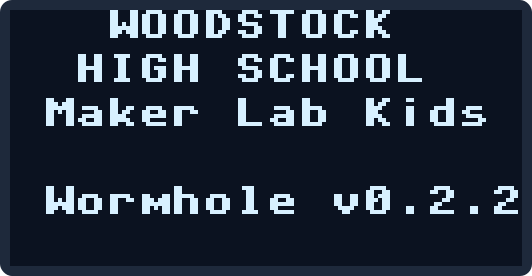
| Version | Meaning |
|---|---|
| 0.1.x | routine change (patch) |
| 0.2.0 | a significant change |
| 1.0.0 | go-live: no breaking changes after this |
When a board is really stuck
These tools are the bench workflow with a computer. For a kid whose board is stuck mid-session, the guided, click-by-click recovery lives on Fix a Board. And the surest reset of all is still there: hold BOOTSEL, plug in, and reflash.